
Widgets are summaries that display on your Dashboard to help you keep track of activities, leads, and customers. The Activity Feed and User Events are the only two widgets that initially display on the left-hand side of the dashboard. All other record widgets initially display in the center column of the dashboard. System widgets will appear in the right (collapsible) column.
Widget Descriptions
The following tables identify and offer a brief explanation for the available widgets.
NOTE: The availability of record widgets and system widgets will depend on your organization’s White Cup CRM setup.
| White Cup CRM Record/Profile Widgets | |
|---|---|
| Widget Name | Description |
| Accounts Summary | List of Bill to accounts responsible for paying the invoices. |
| Campaign Summary | List of all sales campaigns in CRM. |
| Contacts Summary | List of contact records in CRM. |
| Events | Summary of actions taken by logged-in users and filtered by the hour, day, week, or month. |
| Opportunities Summary | Provides a summary list of sales opportunities in CRM. |
| People | List all users who are or have been logged into the platform. |
| Quotes Summary | A list of sales quotes created in CRM. |
| Services Summary | List of Services tickets created in CRM. |
| Ship To Customers Summary | List of ship to/job accounts. |
| Tasks Summary | List of CRM tasks that you have permission to see. (Using the "My Tasks" list will show your open tasks. Using the "Today's Tasks" list will shows your tasks due today.) |
| User Events | List of all events specific to the logged-in user. |
| Charting Widget | Allows you to create a customized chart based on sales activities. |
Note: The Summary widgets with list options for "New (Record)" provide a list to display items created in CRM since midnight of that day. If your ERP sync happens after midnight and new records are created from the prior day, then the list will display yesterday's new ERP records until 11:59pm. It will also show new items created in CRM today.
| White Cup CRM System Widgets | |
|---|---|
| Widget Name | Description |
| Action History | Displays action history. |
| Active Users | Displays which users are logged into the system |
| Calendar | Displays event activities created by or assigned to a user. Scheduled activities will display on the calendar with a colored dot. You can click the dot to view the event details. |
| Clock | Displays the current time in your designated time zone |
| Files | Allows you to upload external files into the system and so they are available for the Doc Viewer |
| My Tasks | Tasks assigned to you in CRM. Click to open the list. |
| Message Board | System wide widget to show text entered as the Message of the Day. |
| Note Pad | Provides a virtual space to log ideas or take notes during a call |
| Quick Contact | This system widget allows you to create and add a contact to the system and display it in the contacts summary widget. |
| Tag Cloud | Stores tags (metadata/keywords) that you can add to a record. |
| Top Sites | You can add and save links to your favorite websites here. Click the website URL to view it. |
Widget Settings
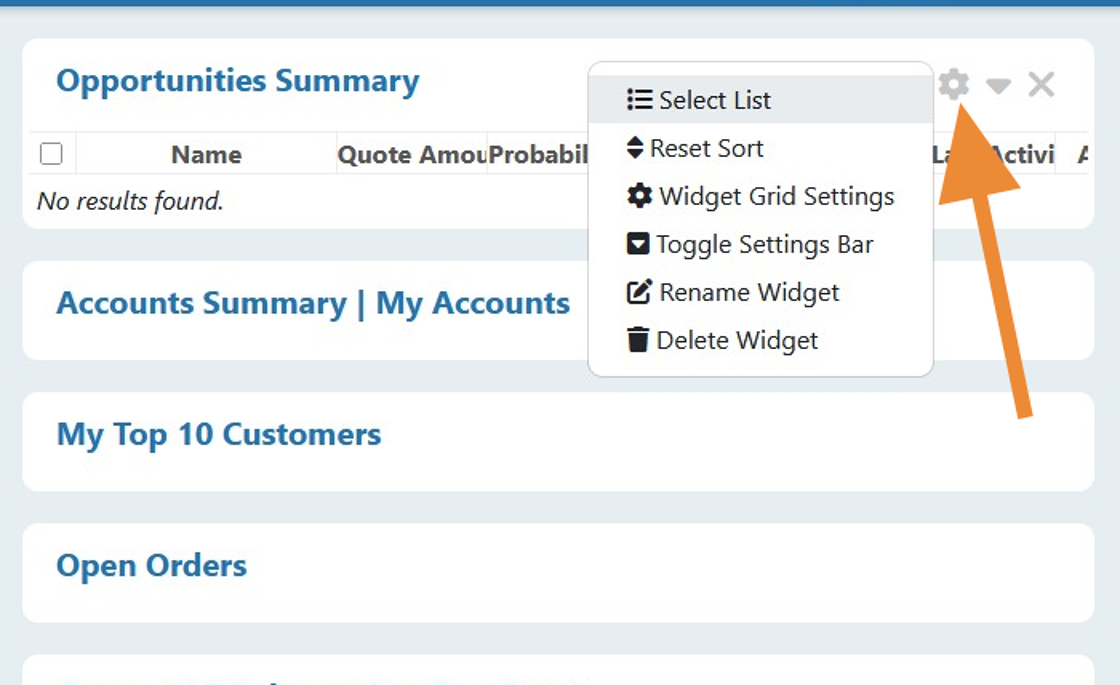
Widget settings allow you to customize your record widgets to suit your needs and CRM work style. Use the settings (gear icon) to change the display of your records, access grid settings, rename or delete a widget from your current view.
Select List
Select List allows you to associate an existing custom or system list to a summary widget. The data and layout will reflect the configured list, including the columns that are visible.
Reset Sort
Reset Sort resets any sorting you have performed back to the default sorting of the list.
Widget Grid Settings
Use the Widget Grid Setting to save or reset your dashboard filter settings. The Widget Grid Settings forms displays.
-
- Leave the box checked to protect your custom dashboard filter settings.
- Uncheck the box if you want to reset your dashboard filter settings when you log out.
- Click Save to save your settings to the CRM.
Toggle Settings Bar
Use the Toggle Settings Bar to customize data widget views. The Widget details page displays available options you can use to manage a single record, multiple records, or all records.

Rename Widget
Use the Rename Widget setting to change the name of a widget.
Delete Widget
Use the Delete Widget setting to remove a widget from the dashboard.
NOTE: The delete action will delete the widget's settings and cannot be undone.
Show Widget

The Show Widget option for dashboard widgets is found in the left pane and allows you to re-add a previously closed widget, with it's settings, to your dashboard.
NOTE: When you select a widget from the Show Widget option, it removes the widget name from the list. The original widget name will display again in the Show Widget list if you rename the widget.
- From the left column, under the Profile section, select Show Widget.
- The list of available widgets displays.
- Click the widget you want to display on the dashboard.
Create Widget

The Create Widget option is found in the left column and allows you to add a widget to your dashboard.
- From the left column, under the Profile section, select Create (Add) Widget.
- The Create Profile Widget option displays.
- From the Widget Type drop-down, select the widget you want to create/add to your dashboard.
- Click Create to add the widget to your dashboard for the first time (or to add another instance of an existing widget for use with a different List view).
Add Widget (System & Record Widgets)
The Add Widget option is found above the right column (once expanded) and allows you to add a system widget to your dashboard. The widgets available to add will vary depending on the CRM screen you are on.

The widgets related to record data (like Related Contacts, etc) can be added to each record view as needed. (ie To view Related Contacts on Opportunities, the widget must be added while viewing an Opportunity. To view Related Contacts on Accounts or other record types, the widget must be added while viewing an account or other record type as needed.)
BI Widget
The option to create/show a BI widget requires White Cup BI. With White Cup BI, the widgets available to show BI data are available based on the CRM Library in WC BI.
NOTE: When you select a widget from the BI Widget option, it removes the widget name from the list. If you later hide that widget from your dashboard (using the X in the top corner of the widget), it will then be listed in the Show Widget section and can be added back to your dashboard from there.
Comments
0 comments
Please sign in to leave a comment.