
Libraries are used in BI to organize related content. There are standard libraries available but administrators can also create additional custom libraries if needed. Users will have access to their intended libraries based on their permissions in BI.
1. Click the Dashboards icon at the top of the screen.
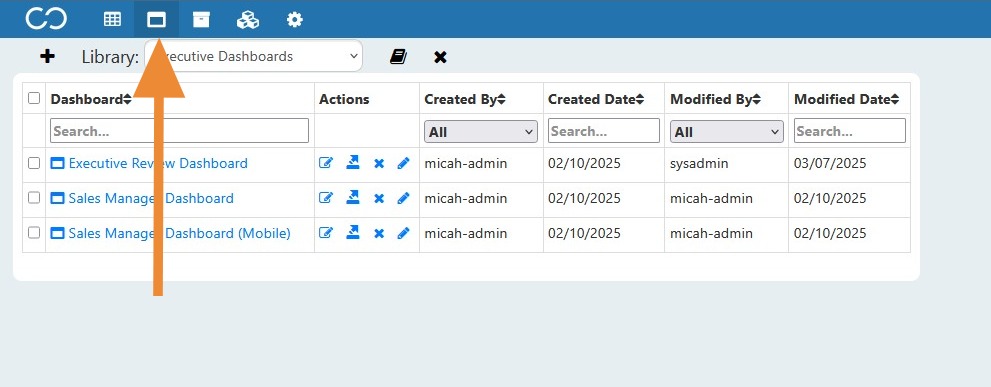
2. Use the drop down menu to view and select a library. For example, the Executive Dashboards library will provide users with access to view the company level dashboards.
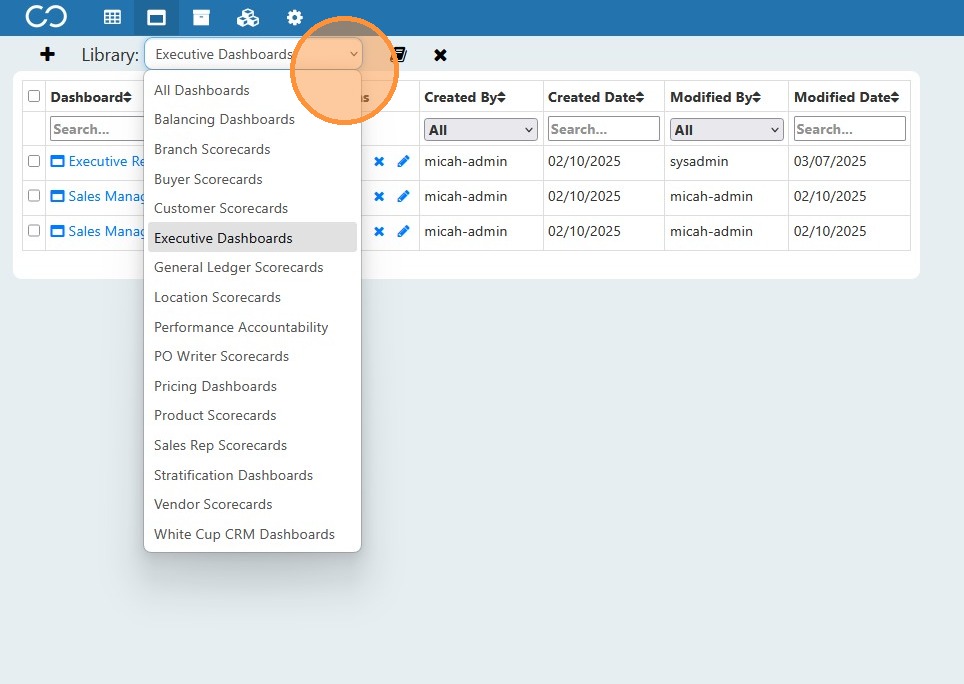
3. By selecting the Sales Rep Scorecards library, individual users will see their information that they are allowed to see. Or managers and other leadership users will be provided a popup to input the sales rep(s) they want to see included on the scorecard.
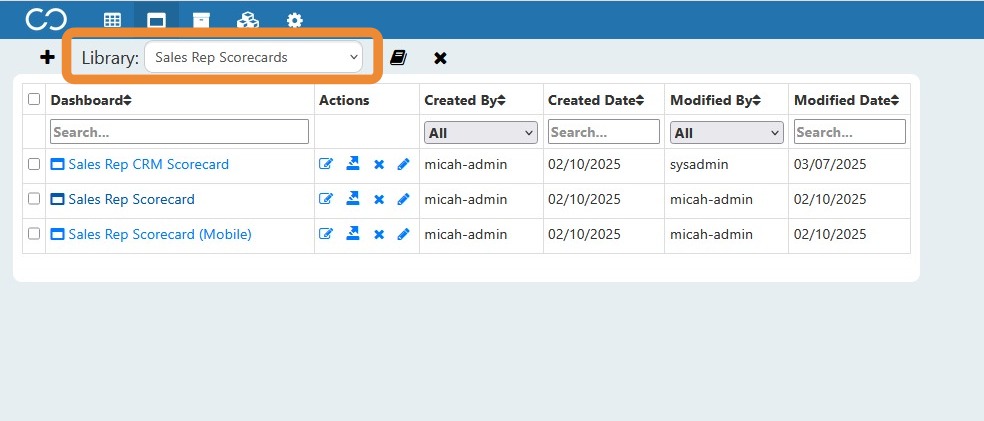

Note: Use the All Dashboards option to search across all libraries.
For customers with White Cup CRM
- The White Cup CRM Dashboards Library stores the objects that are available to include on a CRM dashboard. Standard system delivered objects appear here, as well as new custom objects saved here to be made available in CRM.
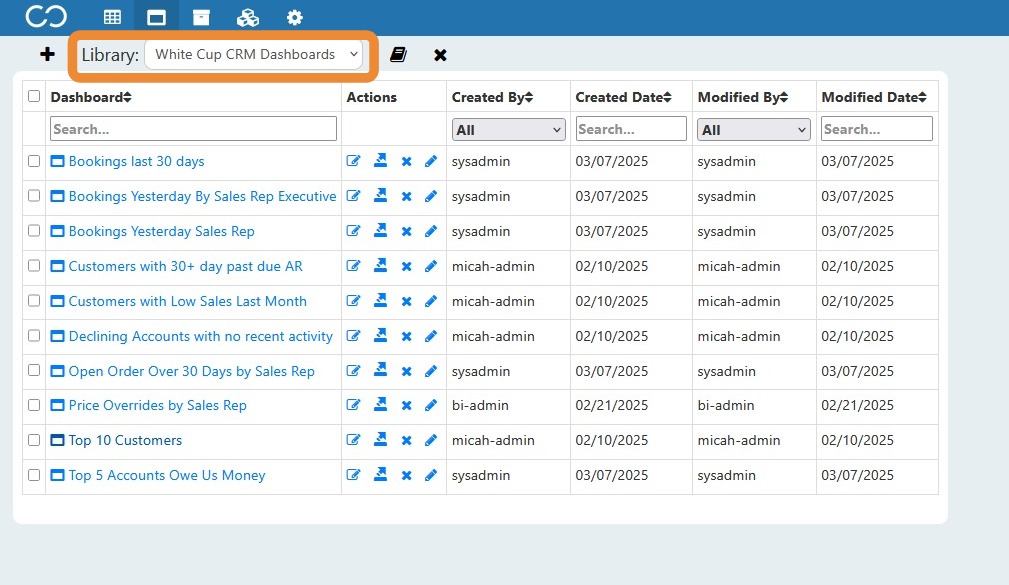

- In CRM, using the BI Widget option in the left panel will allow selection of the objects stored in the above Library. (They are also available to view on CRM Mobile.)
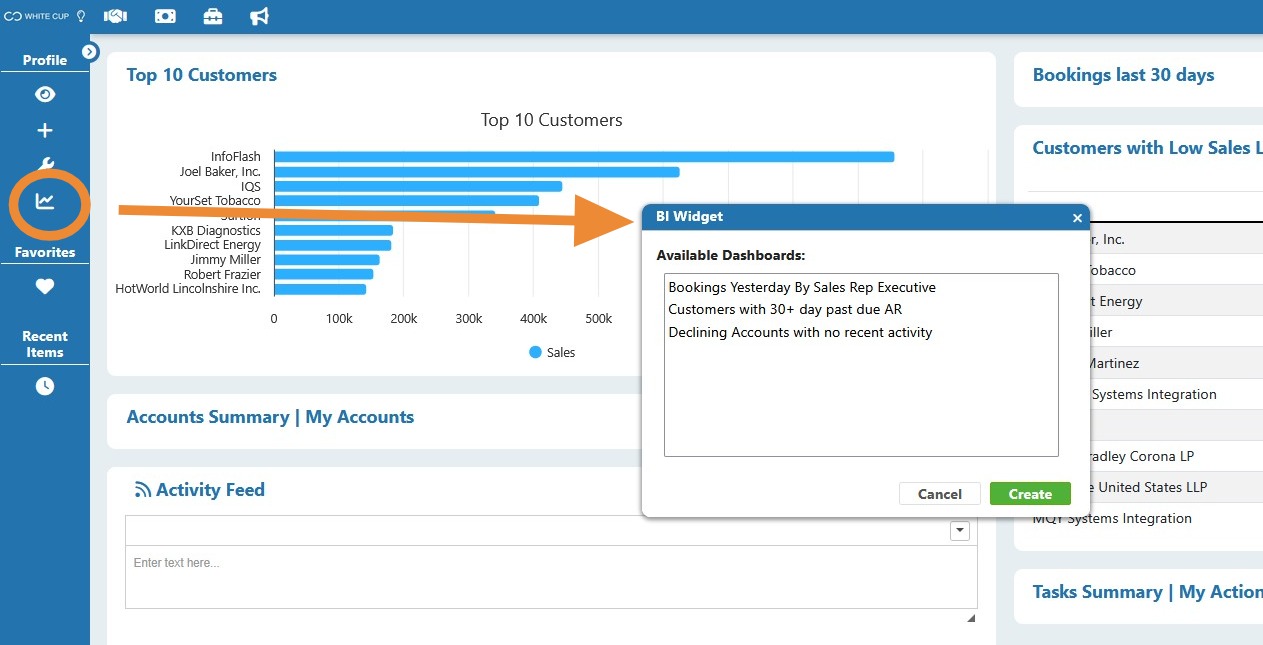
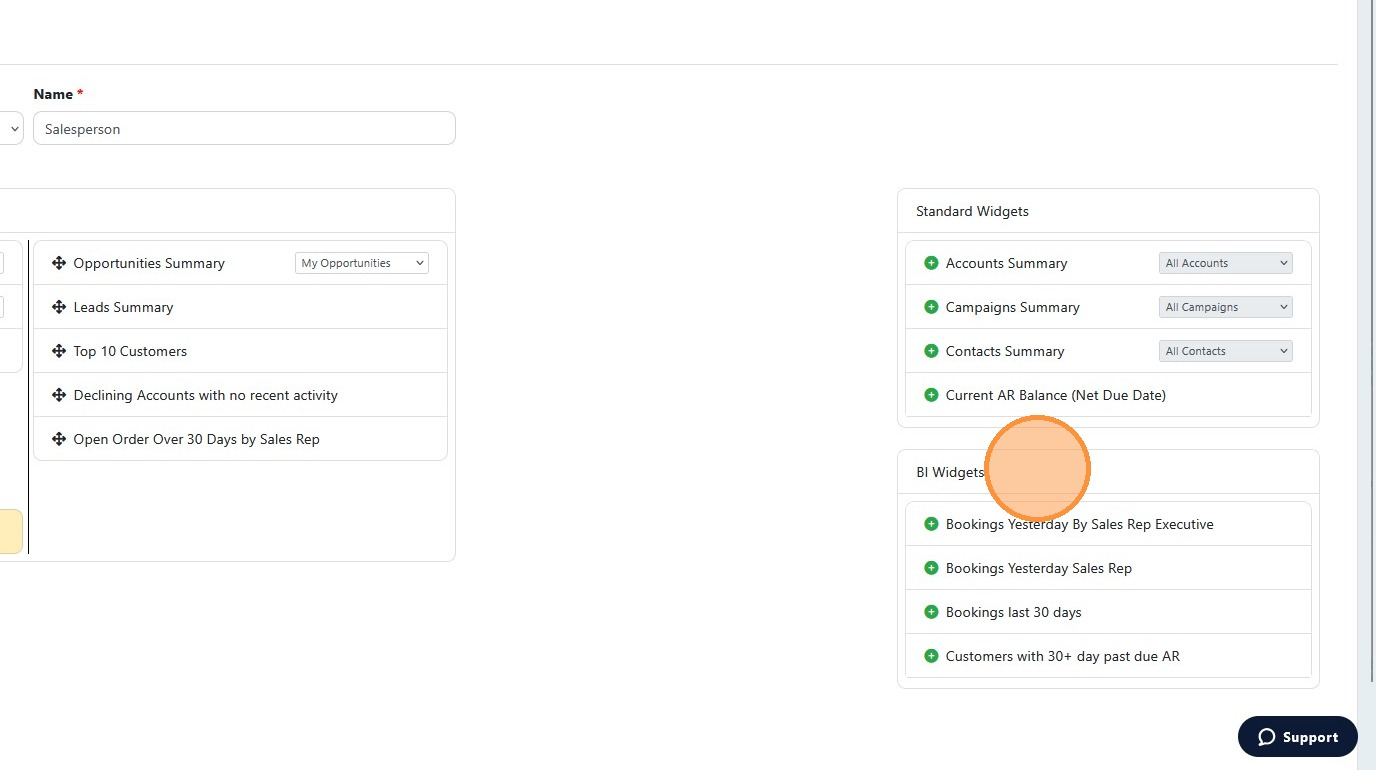
Note: These widgets will also be available to add via the CRM Role Based dashboard configuration.
Comments
0 comments
Please sign in to leave a comment.