
CRM Lists are used to display a subset of records that meet various criteria. One way to expand on the use of lists is to create & email specific lists for key business needs (ie a report) - such as managers that need a list of outstanding tasks on their teams accounts so that they can do a monthly review and coaching session with each team member.
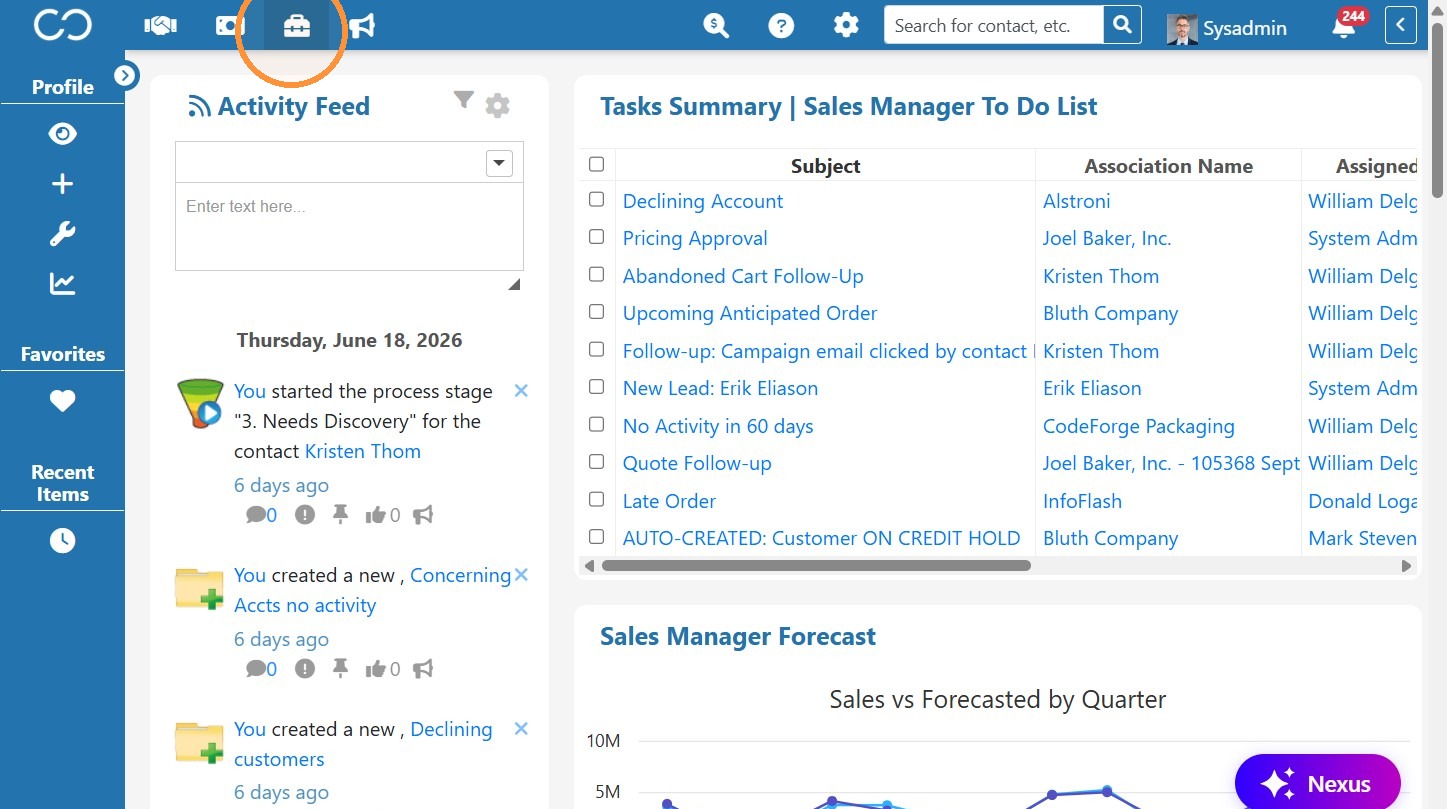
1. Click Tools icon in top navigation bar
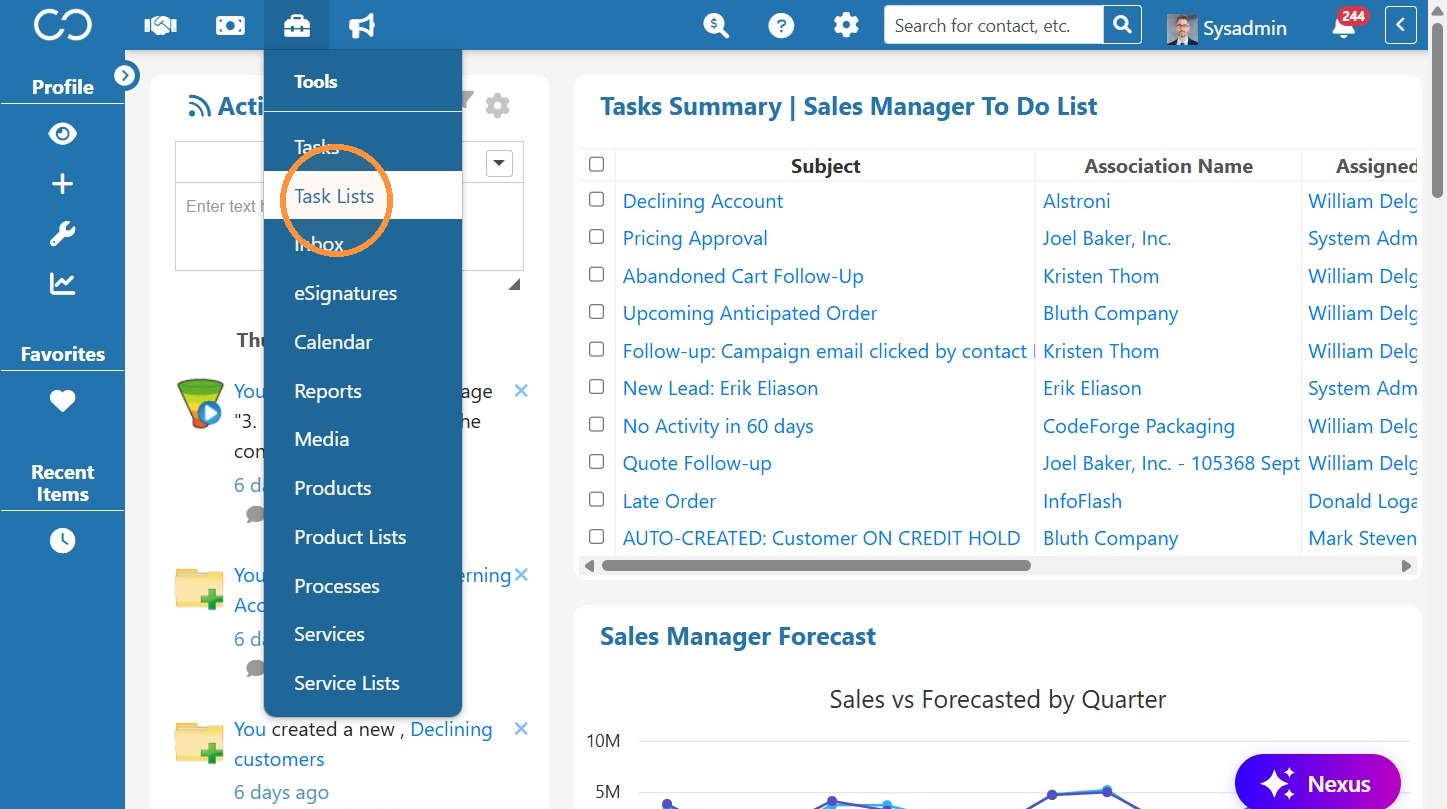
2. Click "Task Lists"
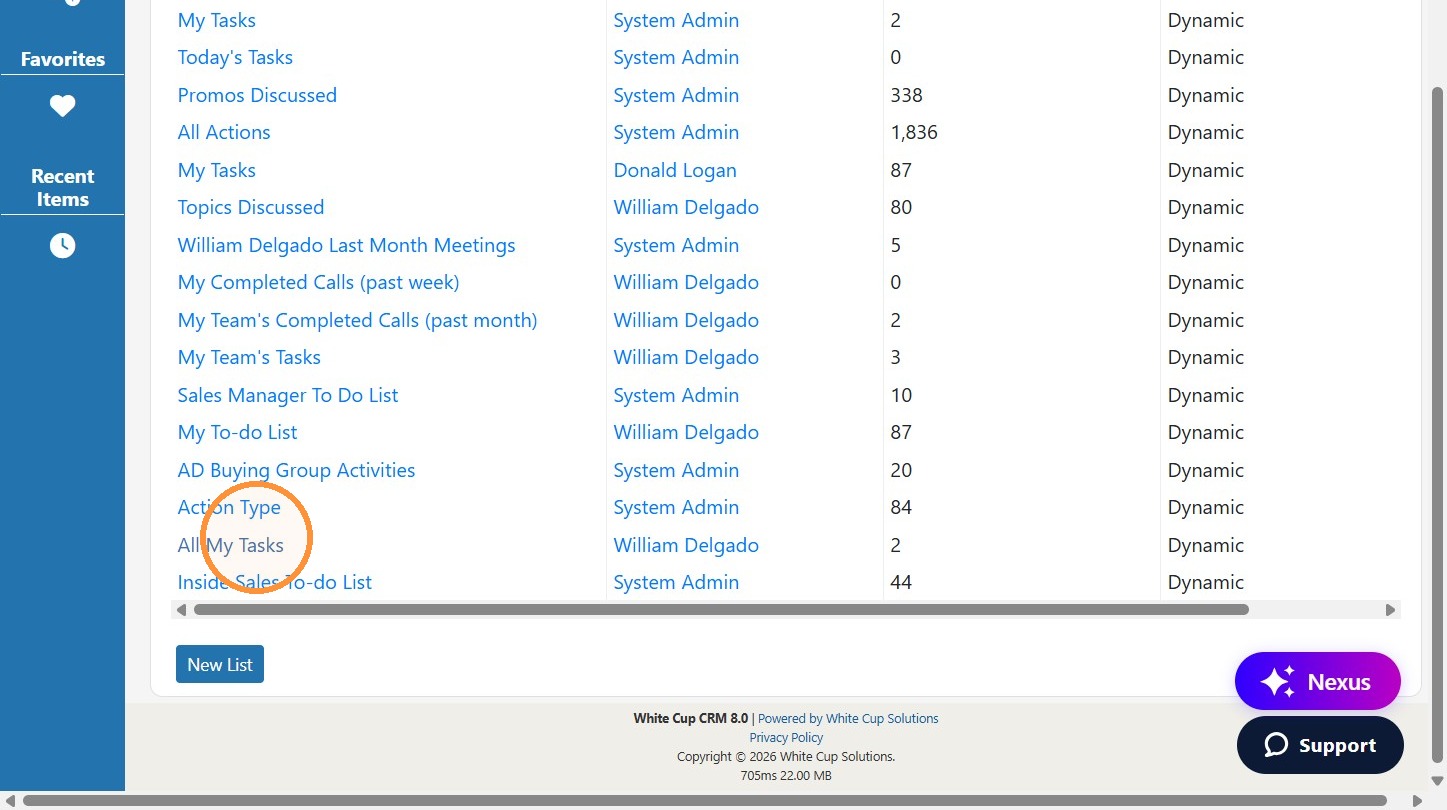
3. Select a tasks list that shows a user's open and pending tasks (or create a new list that meets your required criteria)
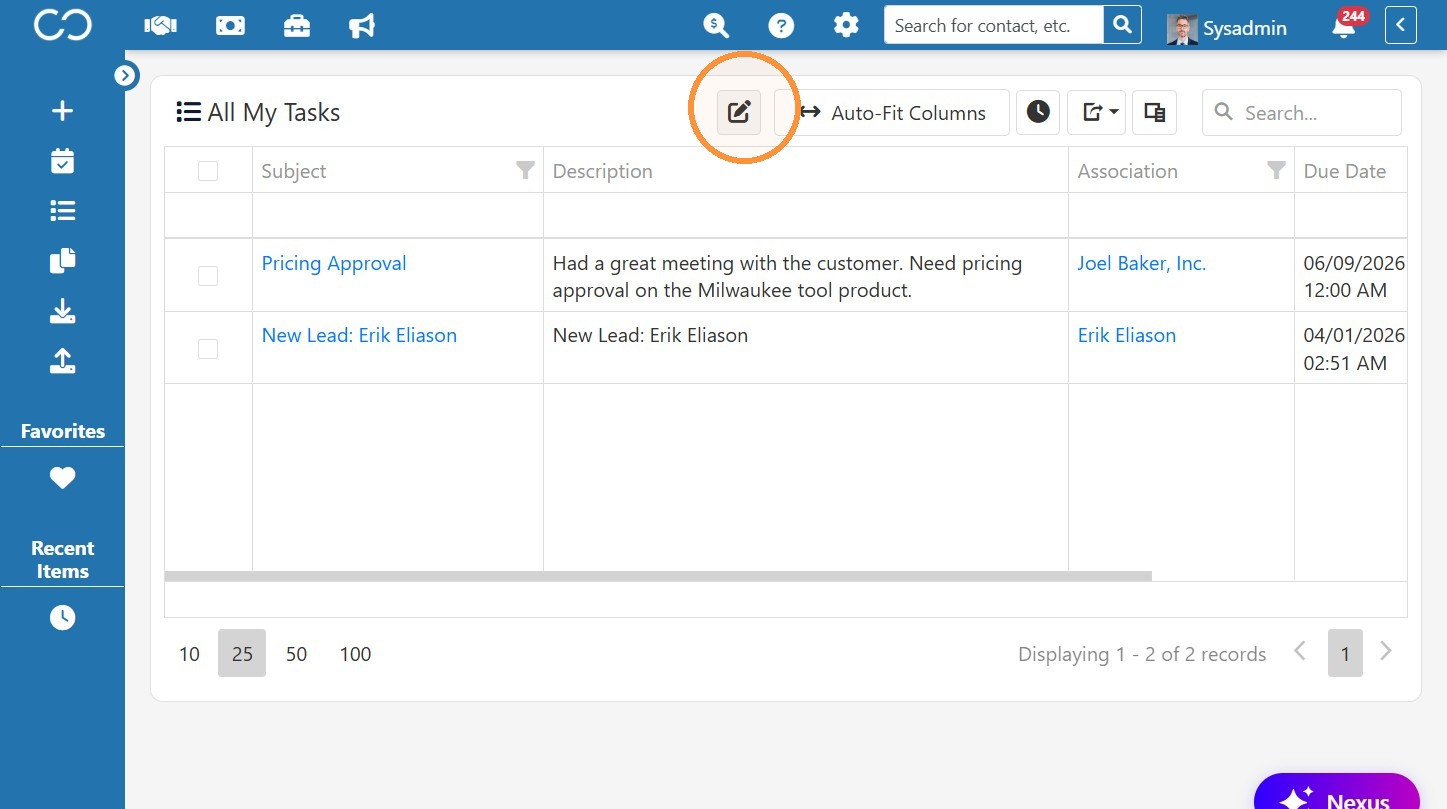
4. If needed, click the Edit button on the list to edit the filter parameters (such as due date today or older, only show tasks assigned to the logged in user, etc.)
5. Once your list is showing what you want (including the needed columns), click the "Schedule List Report" button.
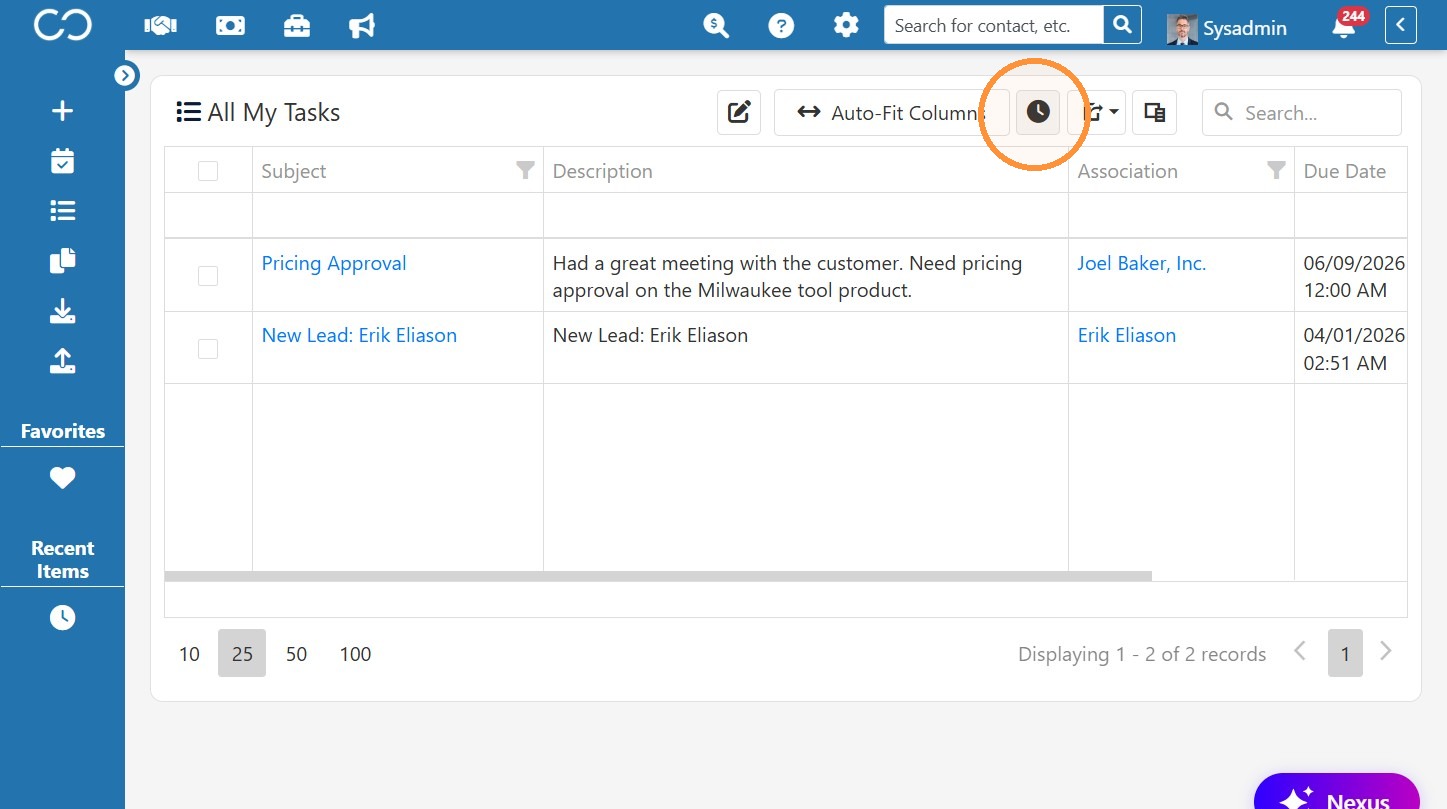
6. Change the schedule you'd like to send the report on -- it can be every day, once a month, etc. (Pro tip: hold down "ctrl" while selecting days if you want to select multiple days but not all days - for example, Monday, Wednesday, and Friday.)
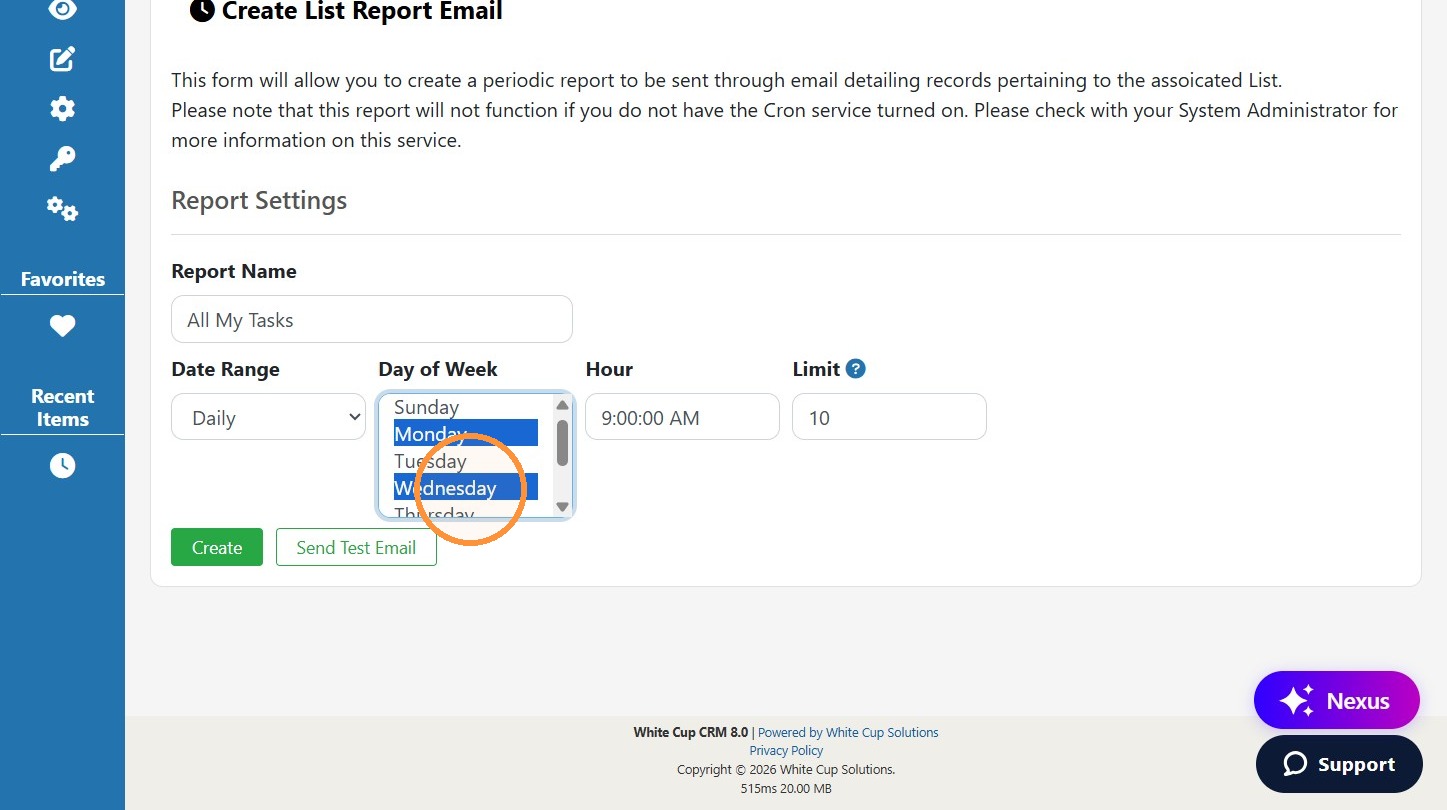
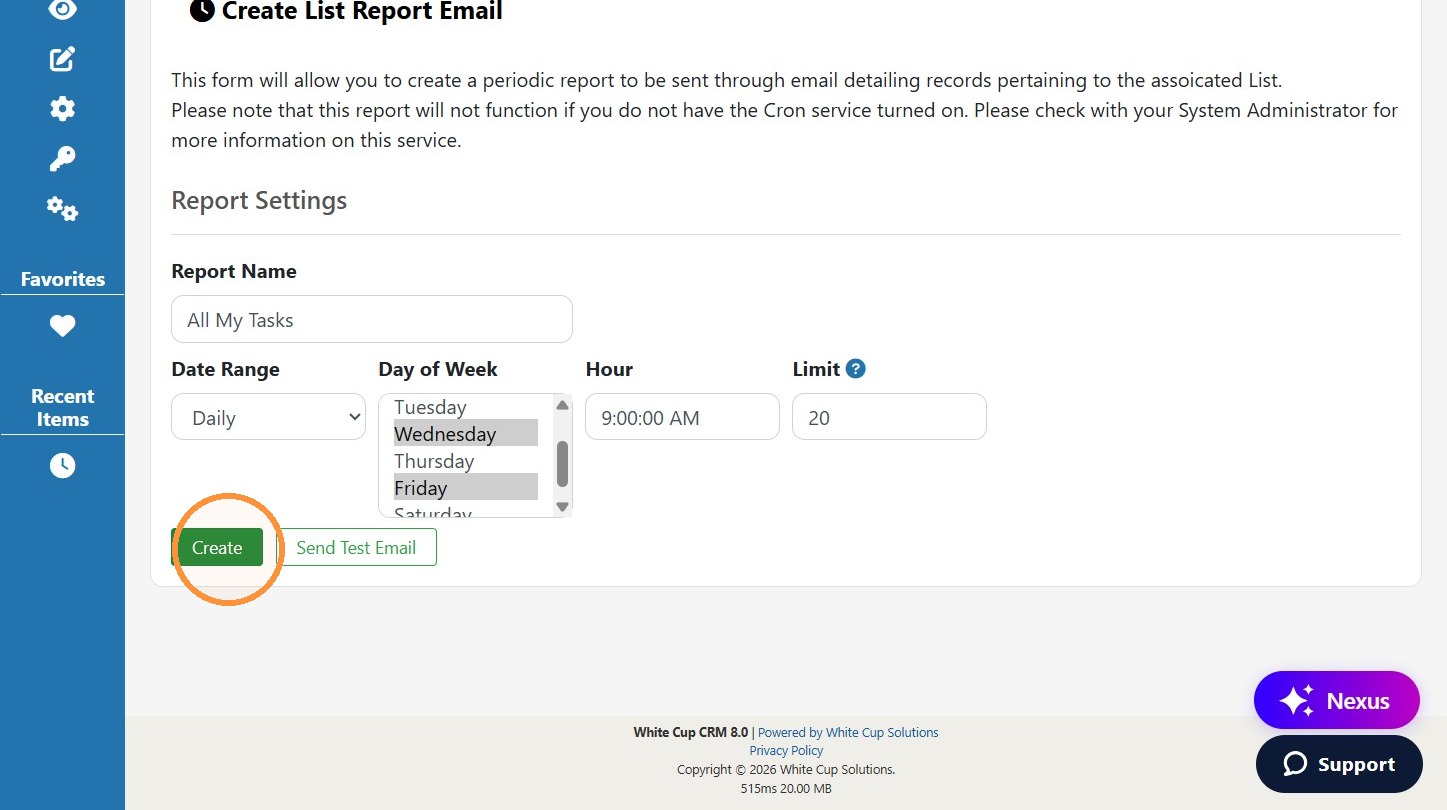
7. Adjust any other settings (like changing the "limit" to a higher number to display more tasks, if needed). Then click "Create. This will be emailed to the email address on your CRM user and will include a link to open the full list in CRM.
8. To stop the scheduled email or make changes to the schedule, go to the Manage Email Reports option in the Preferences section of your User Profile Menu.
Comments
0 comments
Please sign in to leave a comment.