
Symptom:
The user cannot load login screen, cannot see certain icons or data, experiencing slow performance, or other odd behavior on their iOS device.
Cause:
The device's iOS settings may not be configured correctly, cache build up, or device needs restarted.
Resolution:
Step 1:
Follow the applicable guide to force restart your iOS device
Step 2:
Delete history, cache, and cookies
- To clear your history and cookies, go to Settings > Safari, and tap Clear History and Website Data. Clearing your history, cookies, and browsing data from Safari won't change your AutoFill information.
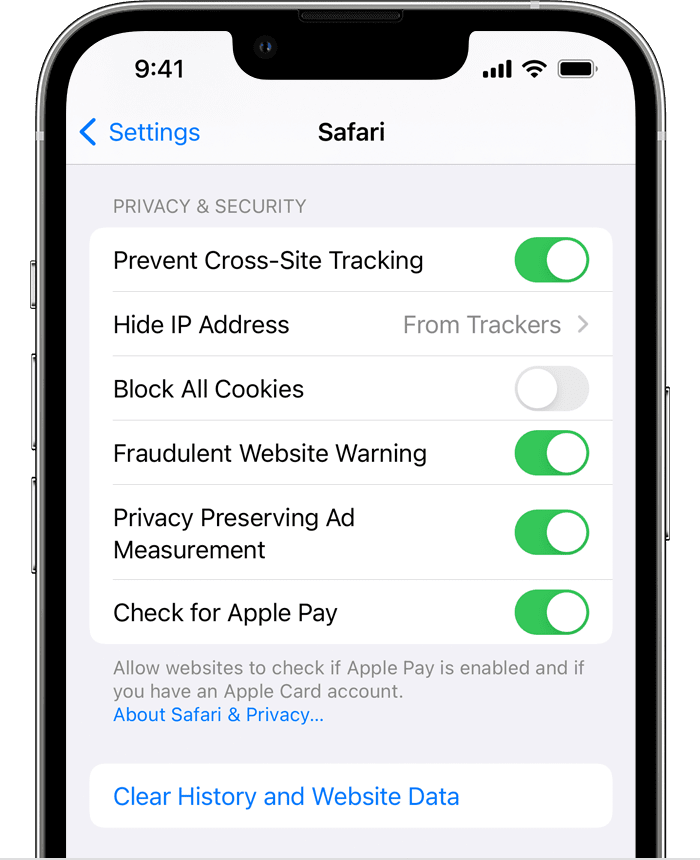
- To clear your cookies and keep your history, go to Settings > Safari > Advanced > Website Data, then tap Remove All Website Data.
- To visit sites without leaving a history, turn Private Browsing on.
When there's no history or website data to clear, the setting turns gray. The setting might also be gray if you have web content restrictions set up under Content & Privacy Restrictions in Screen Time.
Step 3:
Turn Off Block All Cookies and Prevent Cross-Site Tracking
If you block cookies, some web pages might not work. Here are some examples:
- You will likely not be able to sign in to a site even when using your correct username and password.
- You might see a message that cookies are required or that your browser's cookies are off.
- Some features on a site might not work.
Prevent Cross-Site Tracking, when enabled, will prevent the identity server from being able to properly relay authentication information to your TDF Web server. This will cause the following behaviors:
- You will not be able to sign in. After inputting your credentials into the login screen, you will only see a white screen with a changing URL.
Step 4:
Turn On Java Script
References:
Comments
0 comments
Article is closed for comments.