
To set up an email inbox as a White Cup CRM user:
- Select the Tools dropdown and click Inbox.
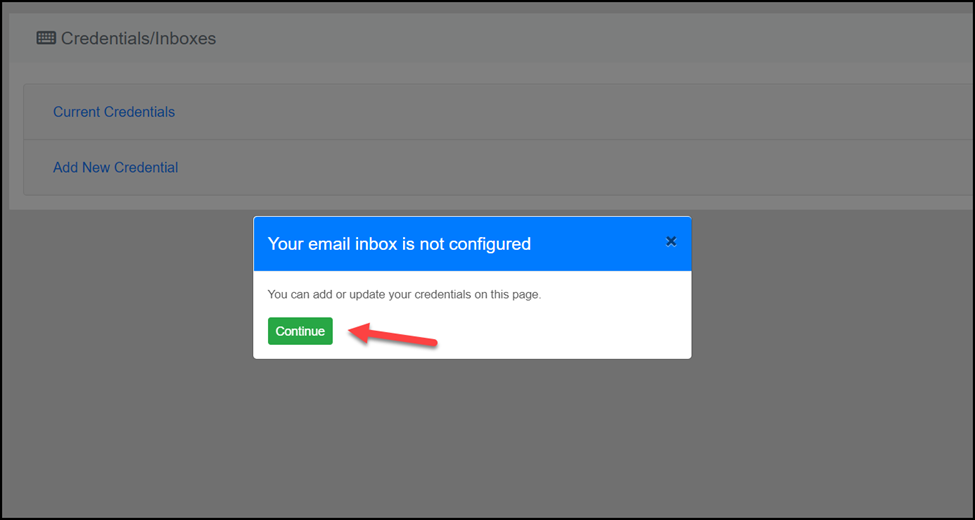
- A message appears indicating that the user’s inbox has not been configured. Select Continue.
-
Select Add New Credential.
- A dropdown appears. Select the type of inbox you would like to configure. After choosing the type of inbox, select Add New.
- The New Email Account screen appears. Select the Log in to Email
- A sign-in screen appears. Enter your email credentials and complete the sign-in process.
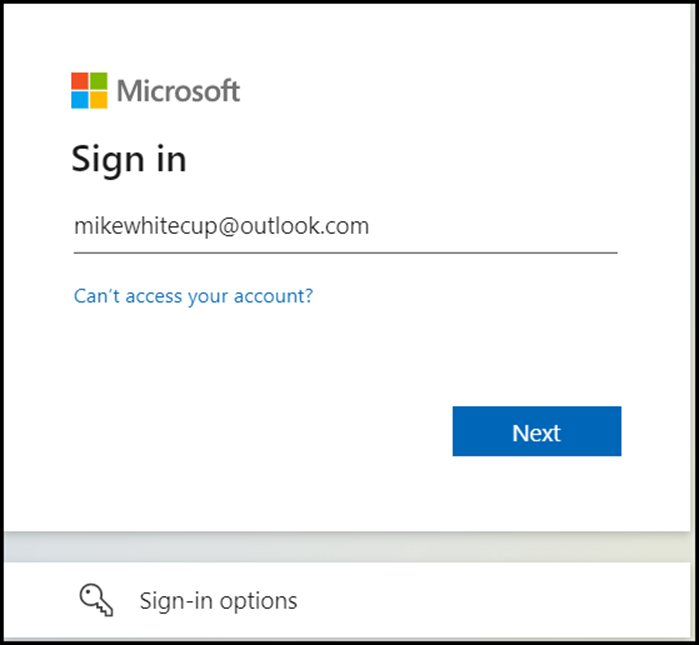 If you receive a message that admin consent needs to be granted, please follow these steps to enable Outlook connection to White Cup CRM for your team.
- Once successful, you are re-directed back to the New Email Account screen where the Sender Name automatically populates with the email account holder’s name. The next step is to enter in a Credential Name. This will be the inbox name when displayed in WCCRM.
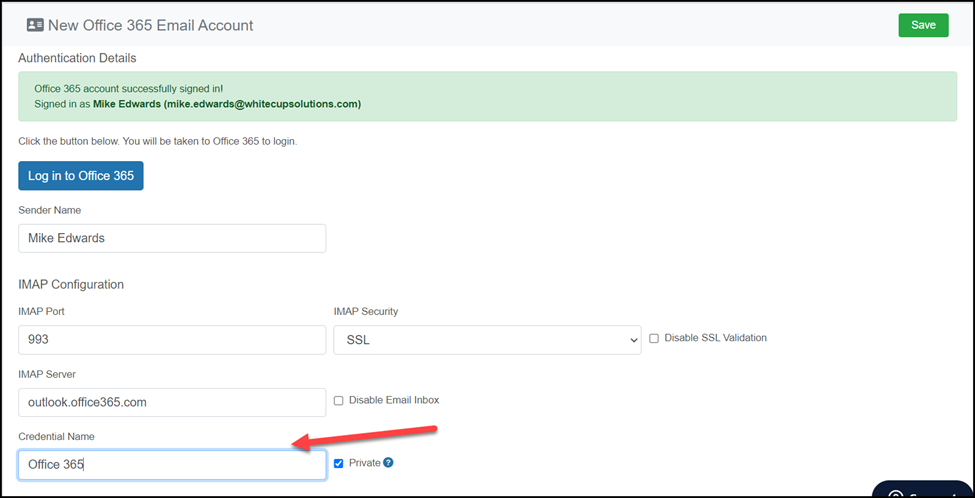
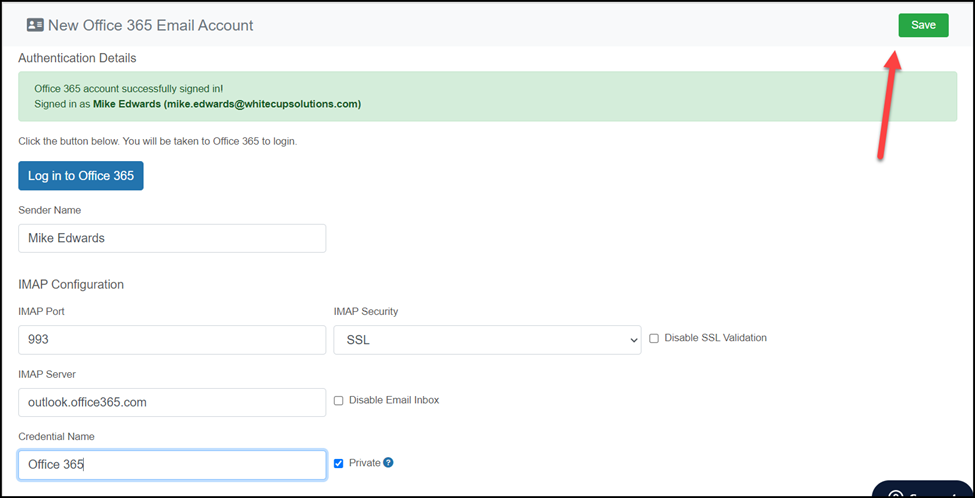
- After entering in the Credential name, select Save.
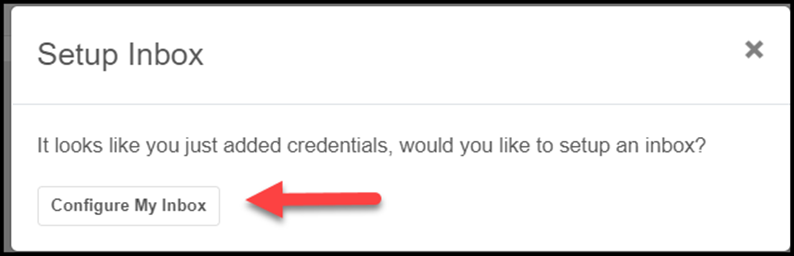
- The Setup Inbox message appears. Select Configure My Inbox.
- The Configure My Inbox screen appears. Note the credentials name you provided displays in the Inbox Name field, and your configured email displays in the Email Credentials field. Select Create.
- The email inbox appears and is ready to use in WCCRM.
Comments
0 comments
Please sign in to leave a comment.